

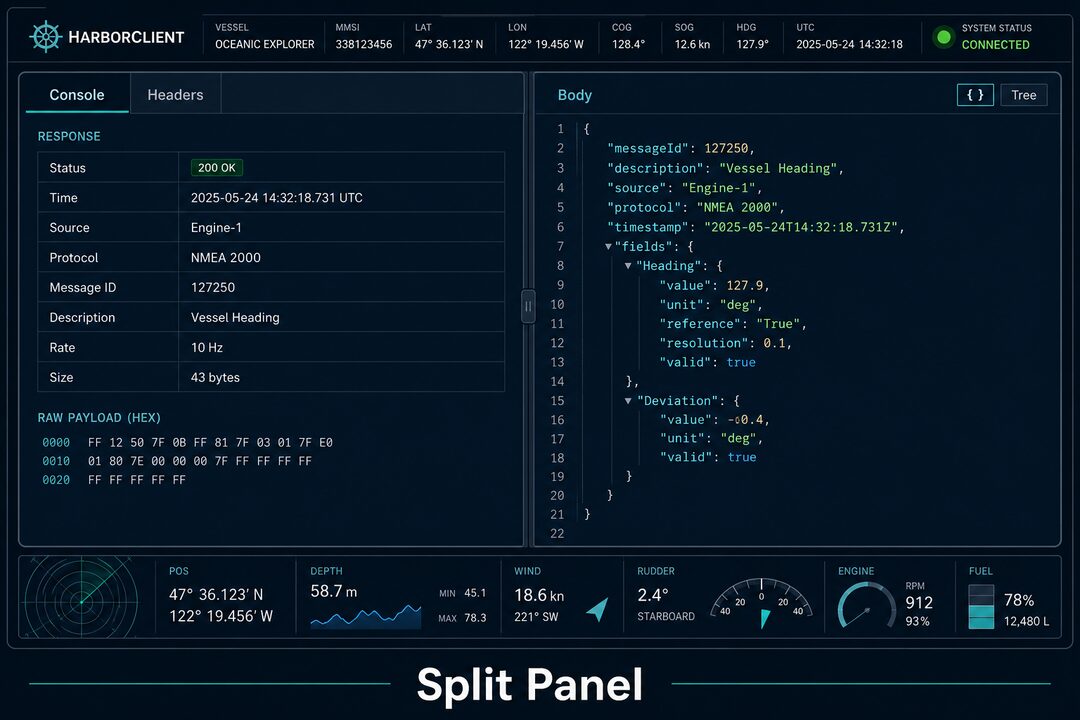
Debugging an HTTP response often means bouncing between the body, headers, timing chart, and test results. HarborClient now lets you keep two of those views open at once with a split response panel.
Right-click any response tab, choose a direction, and the panel divides into two resizable panes. Each pane has its own tabs and its own active selection, so you can read JSON on one side while Timing or Tests stay visible on the other.
How to split the panel
After you send a request, use the segmented tabs under the status bar (Body, Headers, Console, Logs, Timing, Tests, and the rest).
- Right-click the tab you want to move — for example Console or Timing.
- Choose Split left, Split right, Split down, or Split up.
- HarborClient creates one secondary pane on that side and moves the clicked tab into it.
- Drag the divider to resize the panes.

The status line (status code, time, size, Copy, Export, Clear) stays shared above both panes.
Move more tabs, or unsplit
You only get one secondary pane. Once a split exists, right-click another tab in the main strip and choose the same direction again to move that tab into the secondary pane. You cannot stack a third pane or change orientation until the split is cleared.
On a secondary-pane tab, right-click and choose Unsplit to send it back to the main strip. When the secondary pane has no tabs left, the split closes.
What sticks around
The split layout is remembered globally: direction, which tabs live in the secondary pane, pane size, and which secondary tab is active. That layout survives switching request tabs, sending again, and restarting the app.
Response bodies are still session data — after a restart you need to send again to populate the panel — but your preferred split arrangement comes back with you.

When it helps
- Compare Body with Timing while tuning a slow endpoint.
- Keep Tests visible while you inspect Headers or Logs.
- Park Console details beside the JSON body without flipping tabs.
For the full tab reference and split steps, see Splitting the response panel in the docs. Download the latest build from GitHub Releases or harborclient.com.


Leave a Reply