

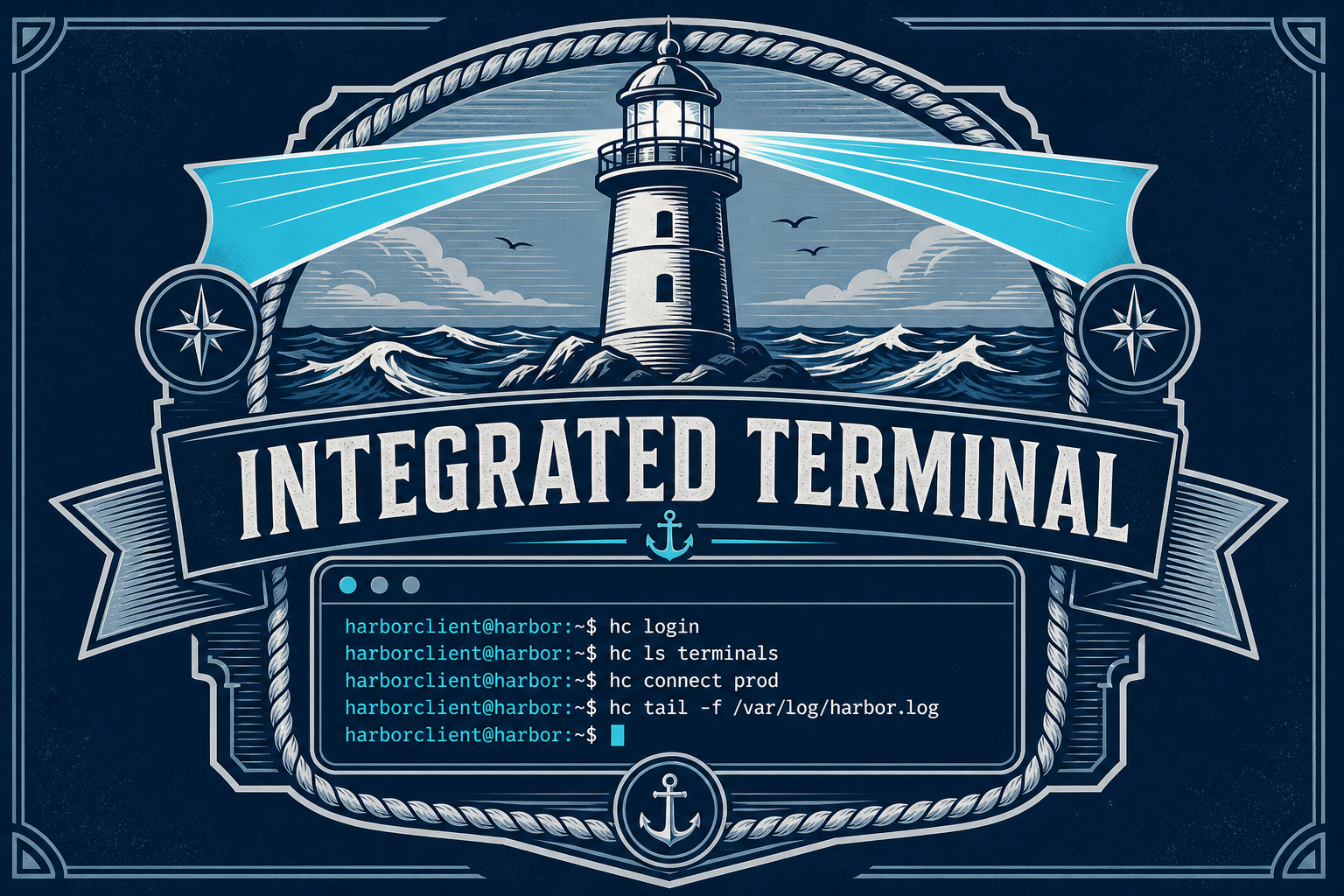
HarborClient now ships with a built-in terminal right in the footer. Run scripts, inspect command output, and debug API workflows without alt-tabbing to a separate terminal app.
Open the Terminal panel from the terminal icon in the footer bar. It slides up from the bottom of the main workspace, alongside Console, Variables, and MCP — so your shell stays next to the requests and responses you are already working on.

Multiple tabs for parallel work
The terminal panel supports multiple tabs in a vertical switcher on the left:
- Add — use the plus button in the panel header to open another shell session
- Delete — remove the active tab with the trash button
- Rename — double-click a tab title to give it a meaningful label like seed-db or docker logs
- Switch — click a tab or use arrow keys, Home, and End to move between sessions
HarborClient remembers your tab layout across restarts, including which tab was active.
Copy terminal output to Agent Chat
Select text in the terminal and HarborClient offers a Copy to chat action. It opens Agent Chat, inserts an @term reference with line numbers, and attaches the selected output as context for your next prompt.
That makes it easy to ask questions like “why did this curl command fail?” or “help me fix this stack trace” without manually copying logs between windows. You need an AI provider configured in Settings for this workflow.
Built for keyboard and screen readers
The terminal panel follows the same accessibility patterns as the rest of HarborClient: proper tab semantics in the switcher, keyboard-resizable dividers, screen-reader-friendly terminal mode, and reduced-motion support for cursor blink.
Try it today
Click the terminal icon in the footer, run a command, open a second tab, and send a selection to Agent Chat. HarborClient keeps your API work, variables, console, and shell in one place — a safe harbor you control.


Leave a Reply