

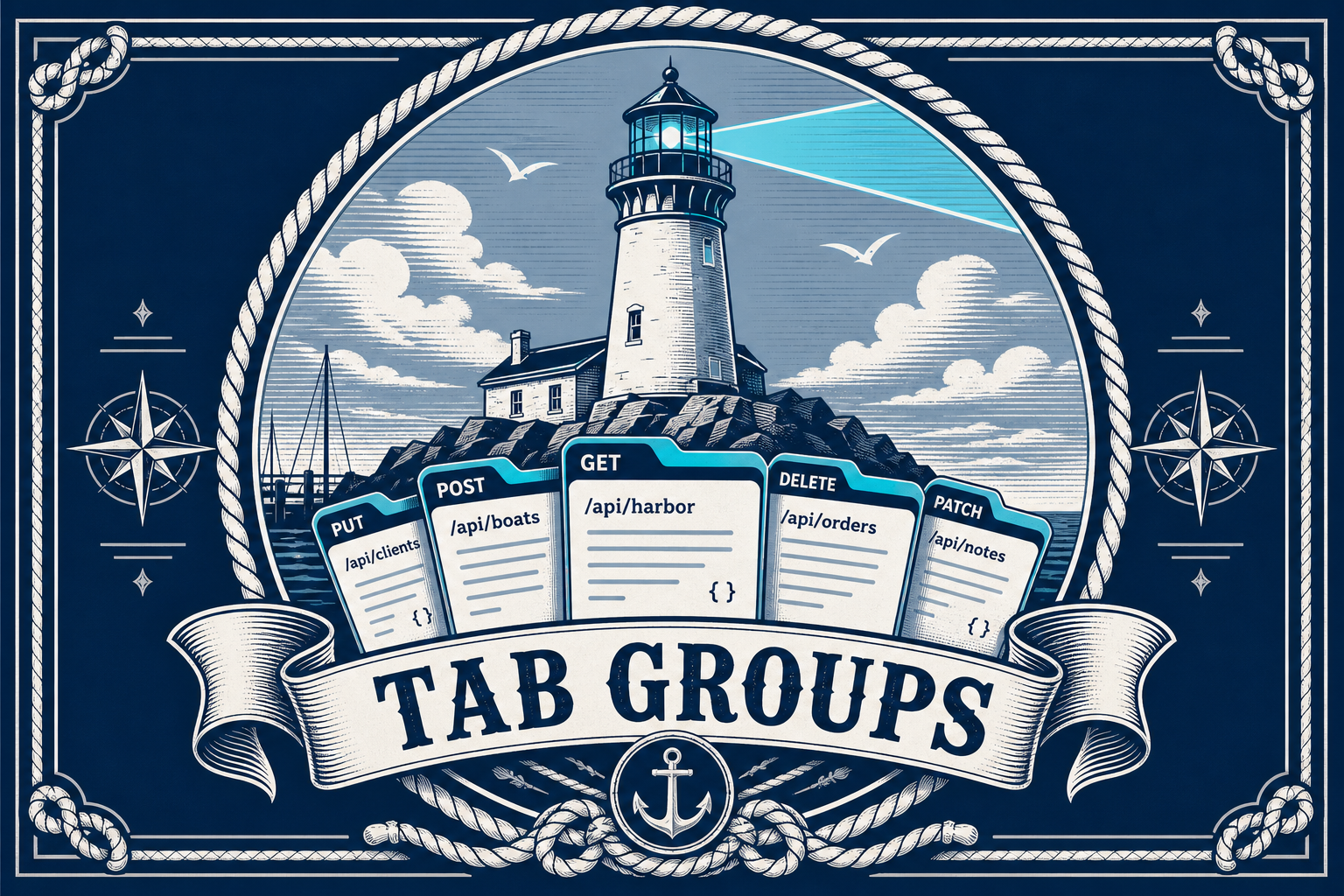
If you work with the same APIs every day, you probably reopen the same requests over and over: login, create a resource, list results, clean up. HarborClient tab groups turn that routine into a one-click workspace.
What are tab groups?
A tab group is a named, saved set of collection requests. Instead of hunting through folders each time you start a workflow, you store those requests together and reopen every member as editor tabs in one action.
Think of a tab group as a bookmark for a working set—not browser-style colored tabs, but a reusable launch pad for the requests you need together.
Why use tab groups?
The biggest win is speed: open a whole bunch of common tabs at once. One click restores the full set so you can start testing immediately.
- Faster setup — Skip reopening each request by hand when you return to a familiar flow.
- Clearer context — Keep auth smoke tests, checkout API, or staging diagnostics as separate, named groups.
- Less clutter — Switch between workflows without leaving dozens of unrelated tabs open.
- Shareable sets — Export a tab group as references so teammates can recreate the same working set.
How to create a tab group
You can create a group from the tabs you already have open, or from a multi-selection in the Collections sidebar. Only saved collection requests are included—unsaved drafts are skipped.
From open request tabs
- Open the saved requests you want in the group.
- Choose Edit → Create Tab Group, or click Add Tab Group (+) in the Tab Groups sidebar section.
- Give the group a clear name (for example, Daily auth checks or Billing API).
- Confirm. HarborClient saves the currently opened request tabs as that group.
From a Collections selection
- In the Collections sidebar, multi-select the requests you want.
- Choose New Tab Group from the selection actions.
- Name the group and save.
How to open a tab group
In the Collections sidebar, find the Tab Groups section and click the group you want. HarborClient opens every member as request tabs—reusing any tabs that are already open—and focuses the first one.
That is the core habit: build the group once, then reopen the entire workspace whenever you need it.
How to edit a tab group
Need to add or remove requests later? Open the group’s row menu and choose Edit. HarborClient opens the group’s requests and shows an edit bar:
Open request tabs to add them and close tabs to remove them, then click Save.
You can also rename, clone, export, delete, reorder, or color-code groups from the same sidebar section so your workspace stays easy to scan.
Practical ways to use tab groups
- Daily smoke tests — Login, health check, and a couple of read endpoints in one click.
- Feature workflows — Create, update, list, and delete for the API you are building.
- Environment packs — Separate groups for staging diagnostics vs. production-safe read checks.
- Support sessions — Keep the requests you use when investigating customer issues ready to open together.
Tips for better tab groups
- Name groups after the job they do, not just the collection they come from.
- Keep groups focused—five to ten related requests usually beats one giant catch-all.
- Use color and order in the sidebar so your most-used groups stay at the top.
- If you prefer fewer prompts, you can adjust the creating and opening confirmations under Settings → Backup and Restore → Show confirmations.
Get started
Open the requests you reach for most often, save them as a tab group, and click that group the next time you sit down to work. In a few seconds you will have your full set of common tabs ready—no hunting, no reassembly, just the workspace you already know.


Leave a Reply